
Two-factor authentication (2FA)
The security of our users' data is our absolute priority. To ensure the highest standard of protection, we are introducing a new feature on our platform – two-factor authentication (2FA).
This is an additional layer of security that effectively protects your account against unauthorized access.
Find out how easily you can activate and manage it from your profile.
Where to find the new feature?
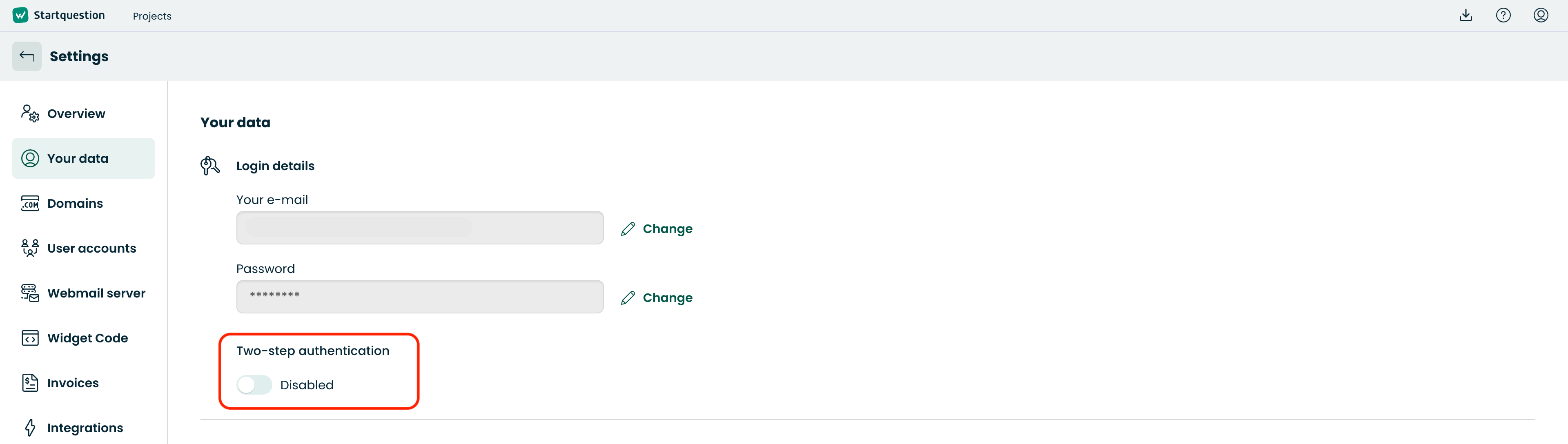
To begin the configuration process, log in to your profile and go to the tab: Account -> Settings -> Your data:
How to enable two-factor authentication (2FA)?
The activation process is very simple and will only take a moment. Just follow the steps below:
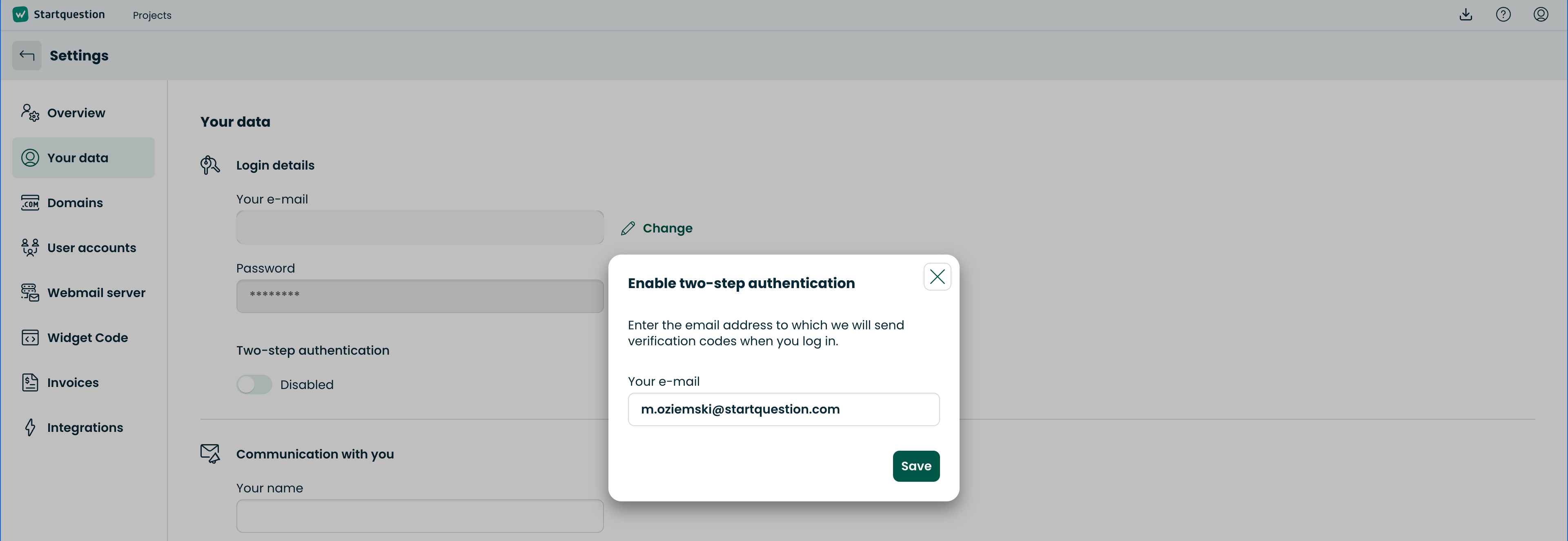
Provide an email address: After enabling the security feature in the settings, a form will appear on the screen. Enter the email address to which we will send the verification codes. Importantly – this does not have to be the same address you use to log in to your account:
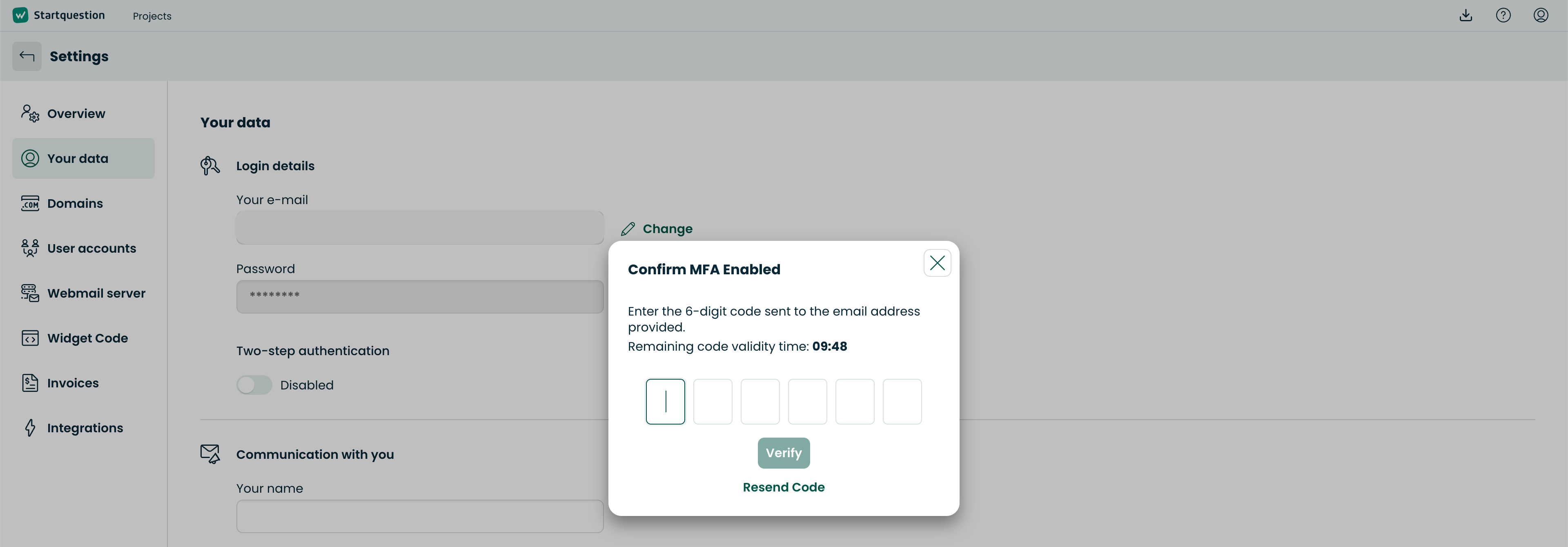
Save settings: After confirming the selected email address, the system will send a one-time verification code to it. A field to enter the code will appear on the screen:
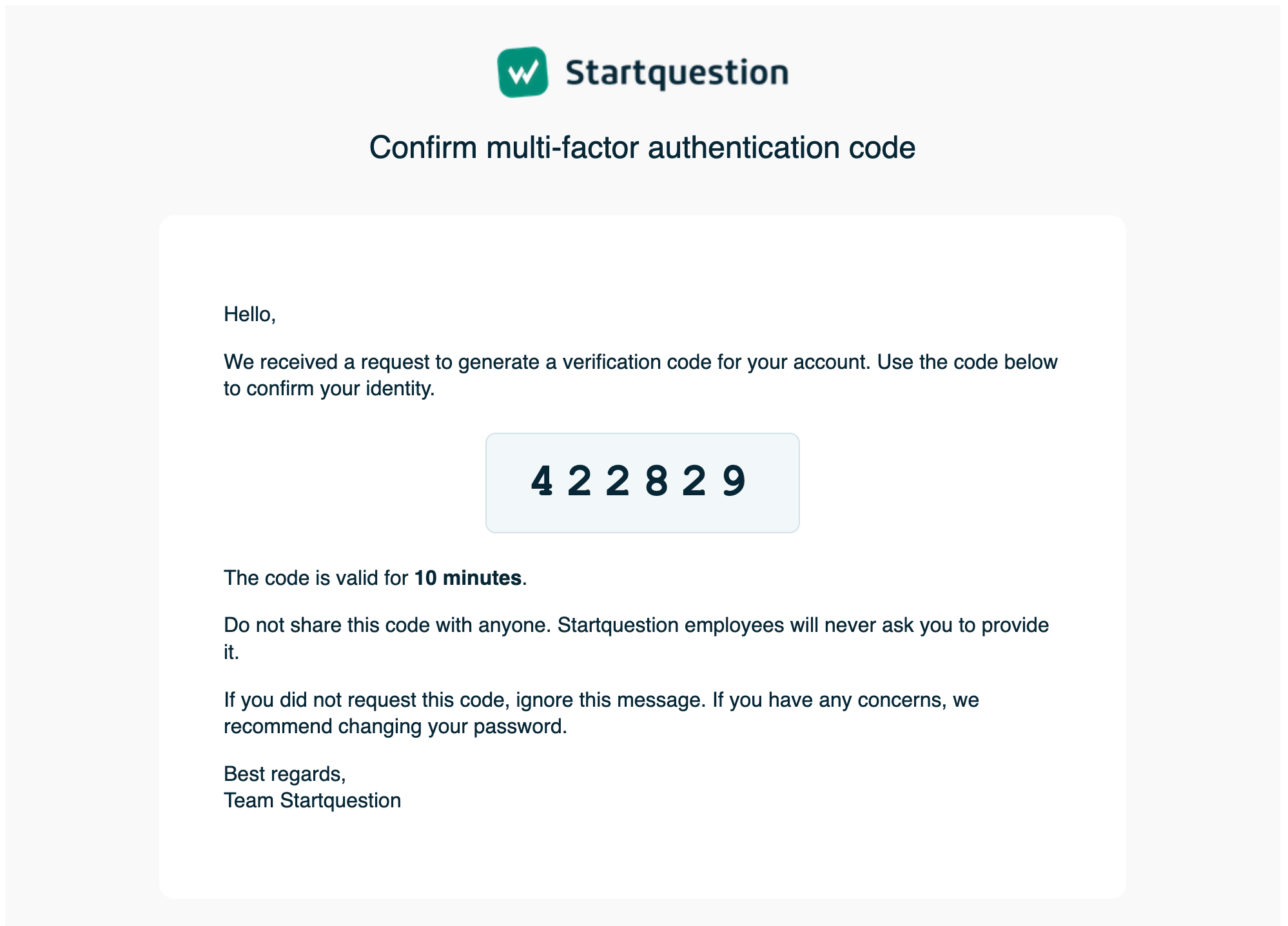
Check your inbox: Check your email inbox (the one provided in the first step). You will find a system message with the generated code there:
Enter the code: Enter the received code on the platform to finally confirm you want to enable 2FA. You will receive a message that the security feature has been successfully activated:
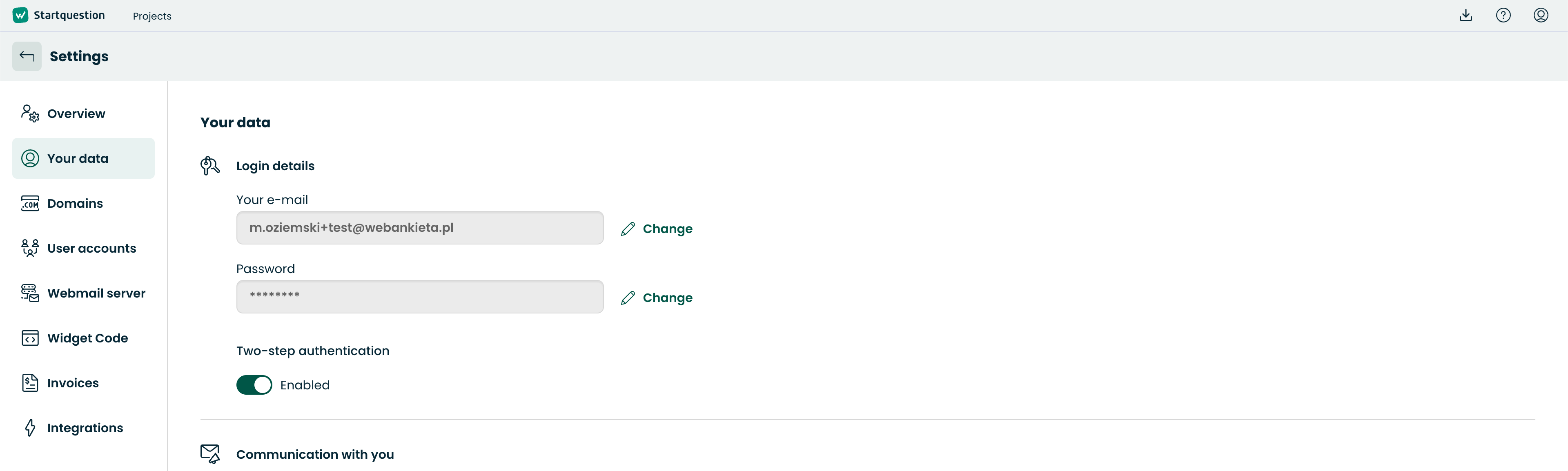
Important: From now on, every time you log in to the system, in addition to your standard password, we will ask you to enter a verification code, which will be sent to your specified email address.
How to disable two-factor authentication?
If for any reason you decide to opt out of two-factor authentication, you can do so at any time:
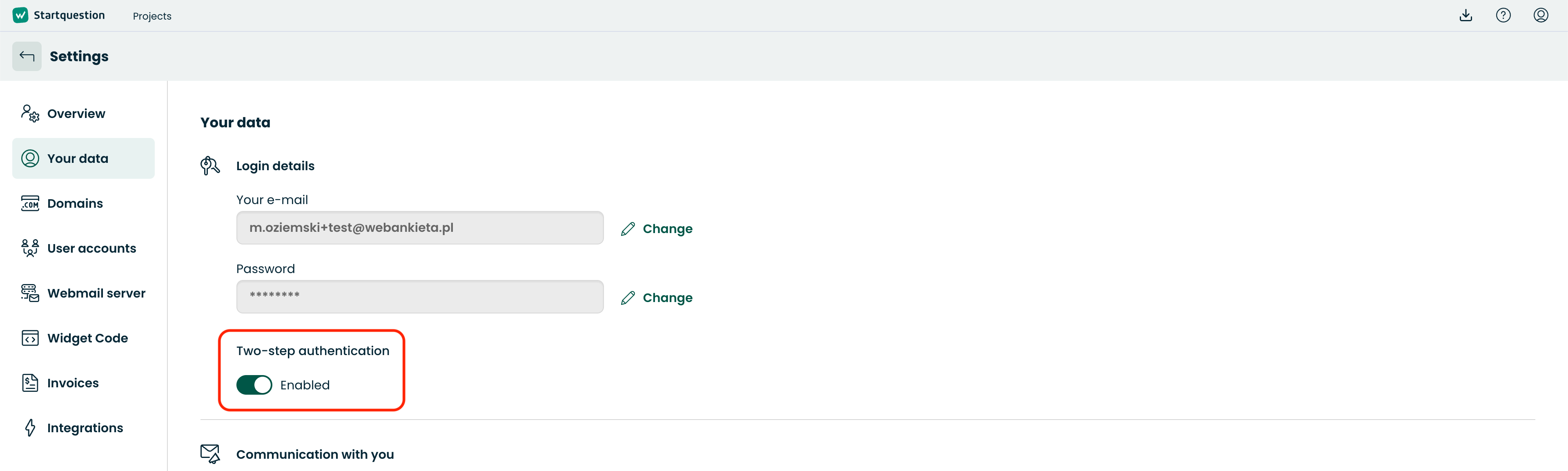
Go to the same Your data tab in the settings and click the Disable button:
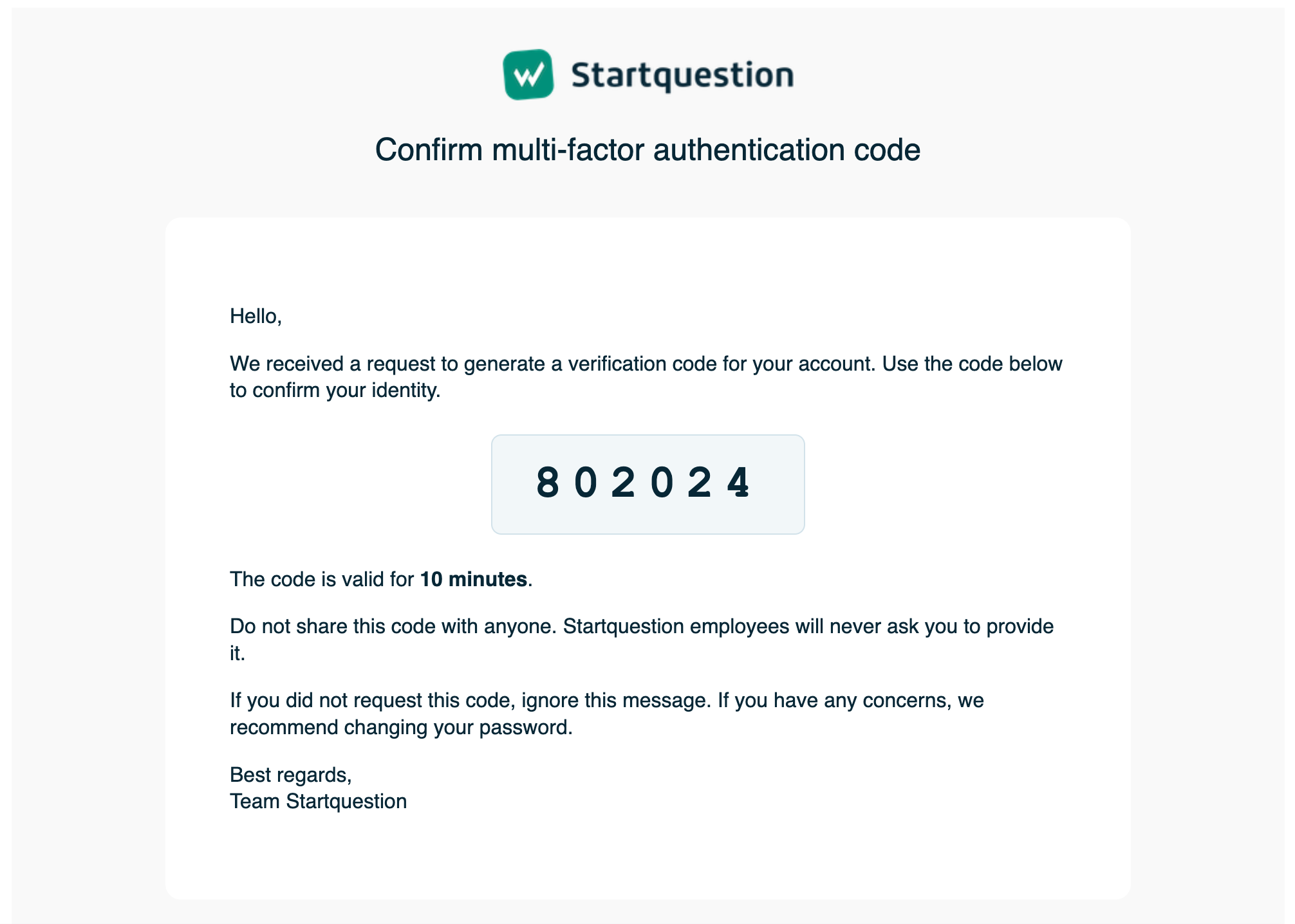
For security reasons, a new code confirming this operation will be sent to your email address assigned to 2FA:
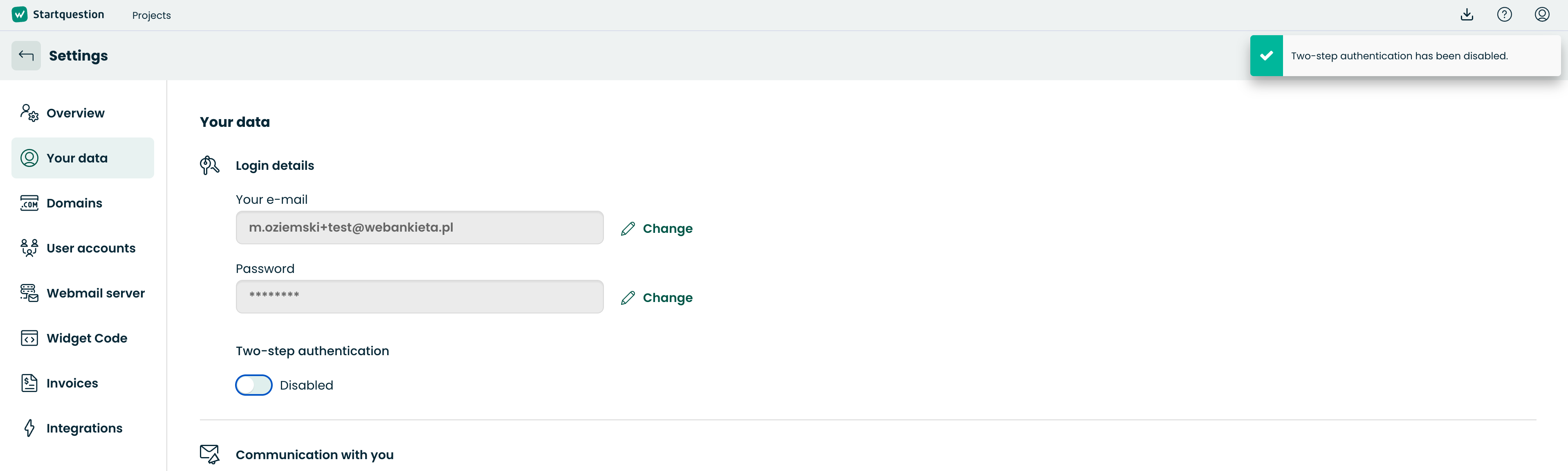
After entering the deactivation code on the platform, the security feature will be immediately disabled, which the system will confirm with an appropriate message on the screen:
We encourage you to enable the new feature today and ensure maximum security for your data!