
Entering your own answer to the question
It is possible to assign an additional field for typing a custom answer or expanding on it to answers in single-choice, multiple-choice, and matrix questions.
Entering a custom answer
1. While creating or editing your question, next to the field where you enter the possible answers to select, there is a Custom answer column. Check the checkbox next to the selected answer – just like in the example below.
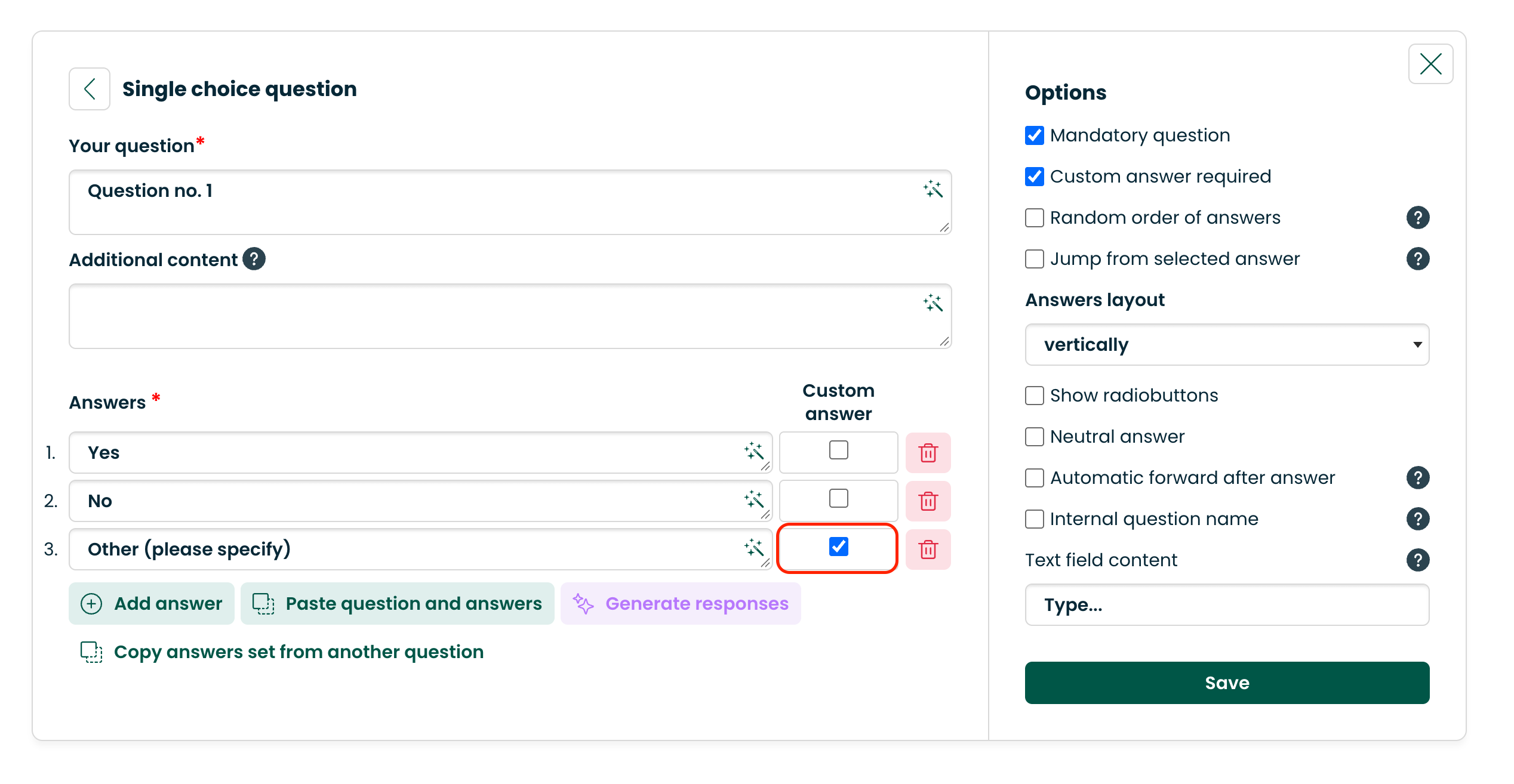
2. Further down, you have the option to choose whether the respondent will be required to enter their own answer, or whether they will be able to leave the space blank – to do this, check or uncheck the checkbox in the appropriate place located in the additional question options.
Own answer in single-choice, multiple-choice, and open-ended matrix questions
Matrix questions are a special type of question that allows you to combine several questions into one common question consisting of several rows. The respondent provides answers by selecting the appropriate options from the available cafeteria.
In single-choice, multiple-choice, and open-ended matrix questions, it is possible to add your own answer. Thanks to this, the respondent can indicate an answer from outside the available suggestions. However, not every respondent may want to use this option. Therefore, we have introduced a functionality that allows you to turn off the obligation to provide an answer in selected rows of the matrix, including the row intended for the own answer.
To configure this functionality, when editing a matrix question, you must specify which rows are to be excluded from the obligation to provide an answer. The following options are available:
- Every row mandatory – the respondent must provide an answer in every row.
- Every row mandatory except the last one – the respondent can leave the last row unanswered.
- Every row mandatory except the last two – the respondent can leave the last two rows unanswered.
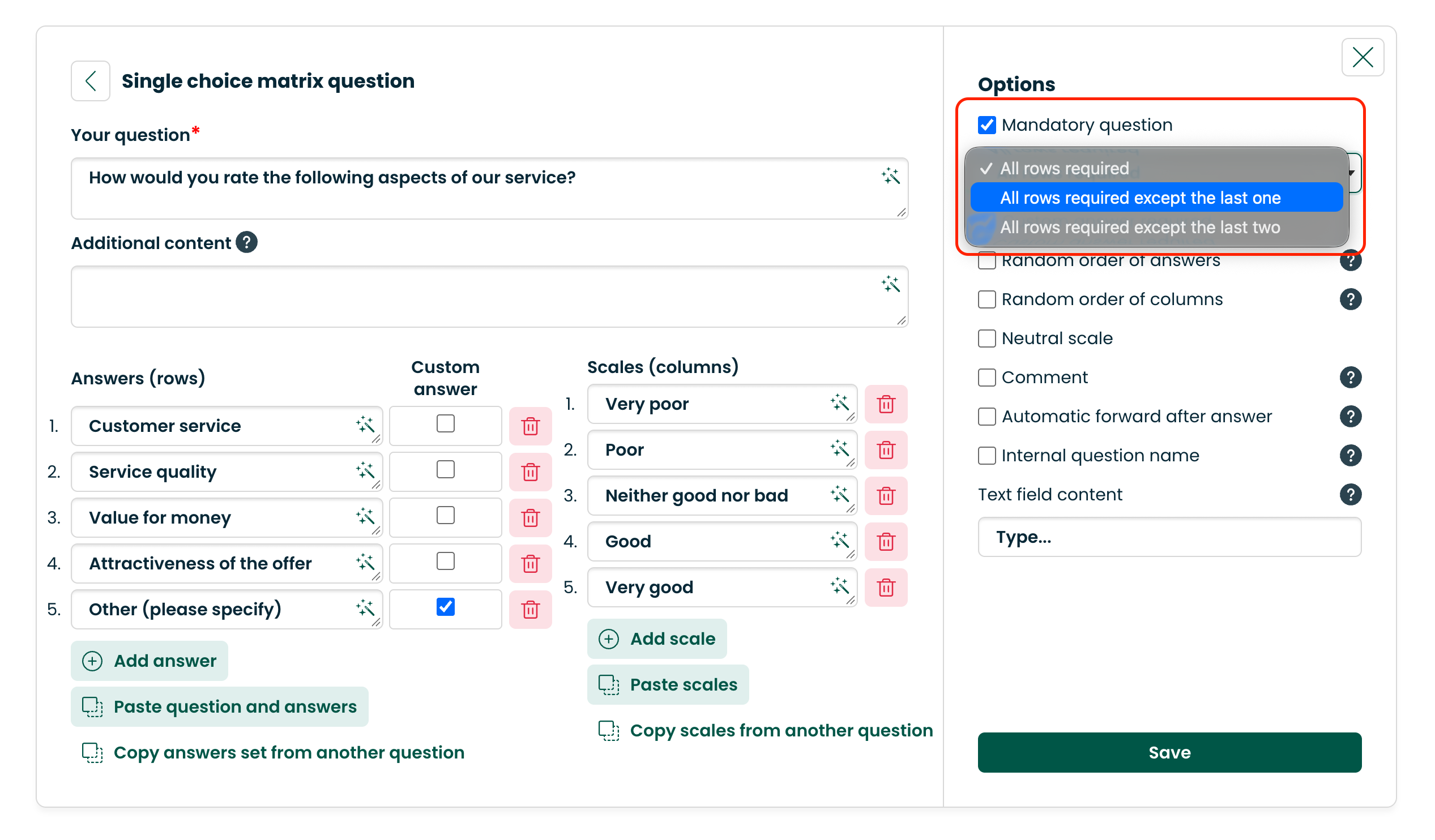
After disabling the obligation to answer in the row intended for the own answer, the respondent will be able to leave this field empty and proceed to the next questions in the questionnaire without having to enter their own answer.