
Discount Codes After Completing a Survey
With the Discount Codes feature, you can automatically provide respondents with a unique code after they complete a survey. The code can be used, for example, as a discount in an online store, a voucher, a gift card, or another type of reward for taking part in the survey.
Each respondent receives one code from the list you provide, and a code that has already been assigned will not be given to another respondent.
How do Discount Codes work?
Once the feature is enabled, a respondent who completes the survey will see the message you have prepared along with their assigned code on the thank-you screen.
Codes are assigned in the order in which they were added to the list. This means that the first respondent will receive the first code on the list, the second respondent will receive the second code, and so on.
Important: once a code has been displayed, it is assigned to that respondent and will not be assigned to another person.
How to configure Discount Codes?
Go to the Gift Codes section in the survey settings and then:
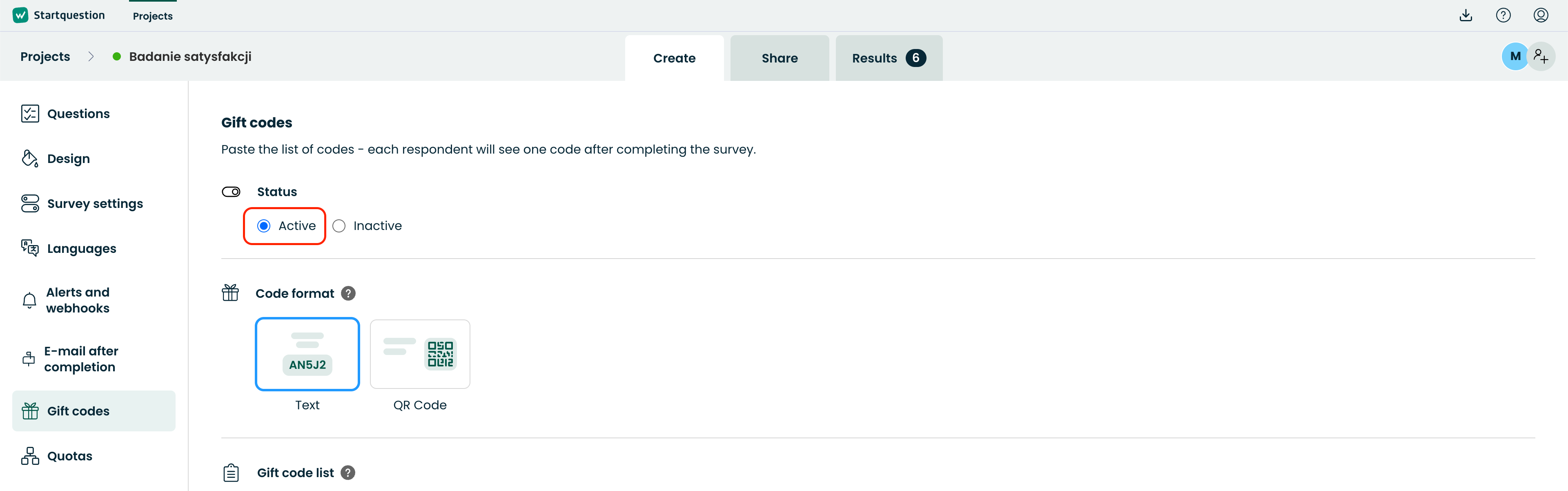
1. Enable the feature
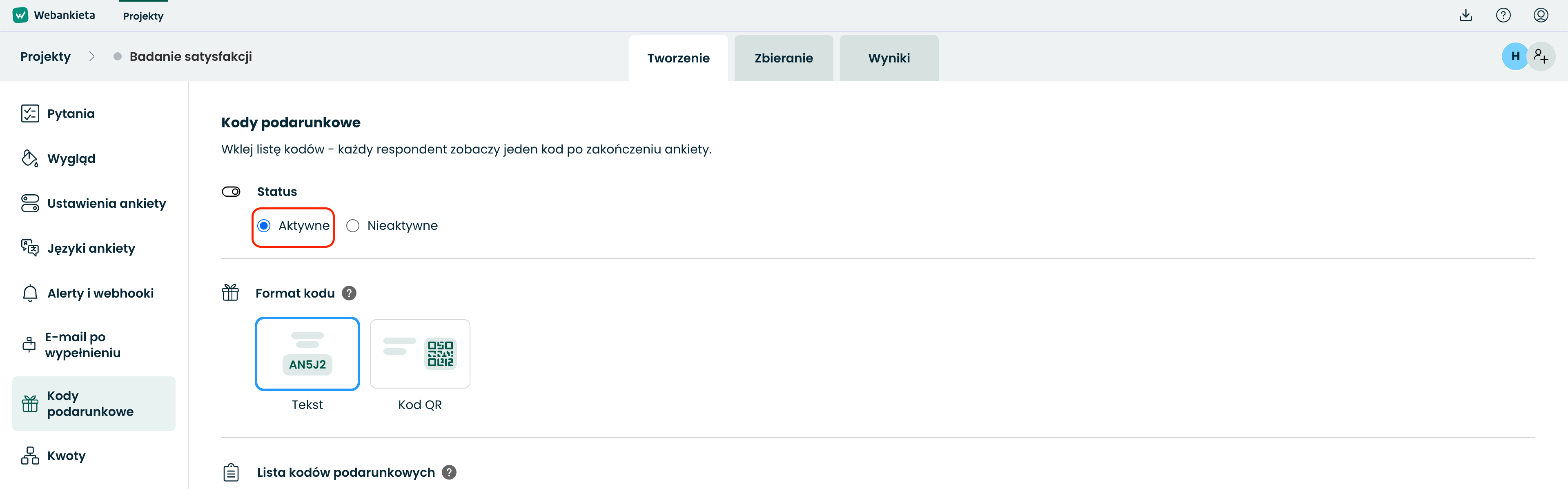
In the Status section, select Active:
2. Choose the code format
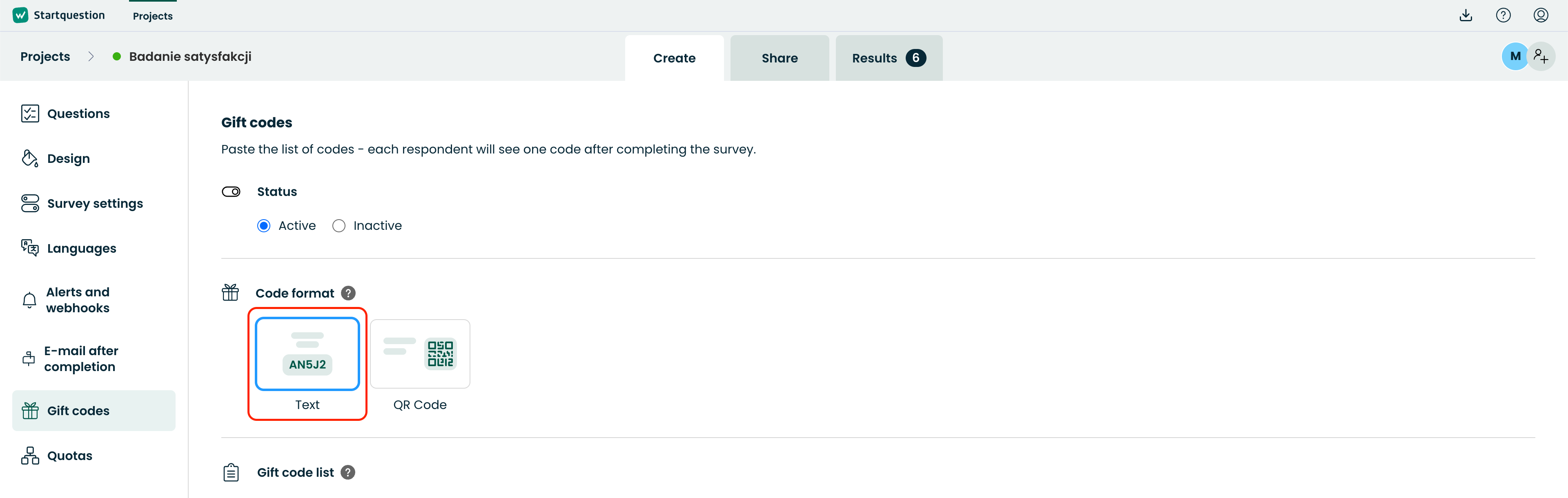
You can choose how the code will be presented to the respondent:
Text code – this option works best when the code is short and the respondent needs to type or paste it, for example, when placing an order in an online store:
QR code – choose this option if the code is long and easier to scan than type. This can be particularly useful, for example, at a checkout in a physical store or on a device equipped with a barcode scanner.
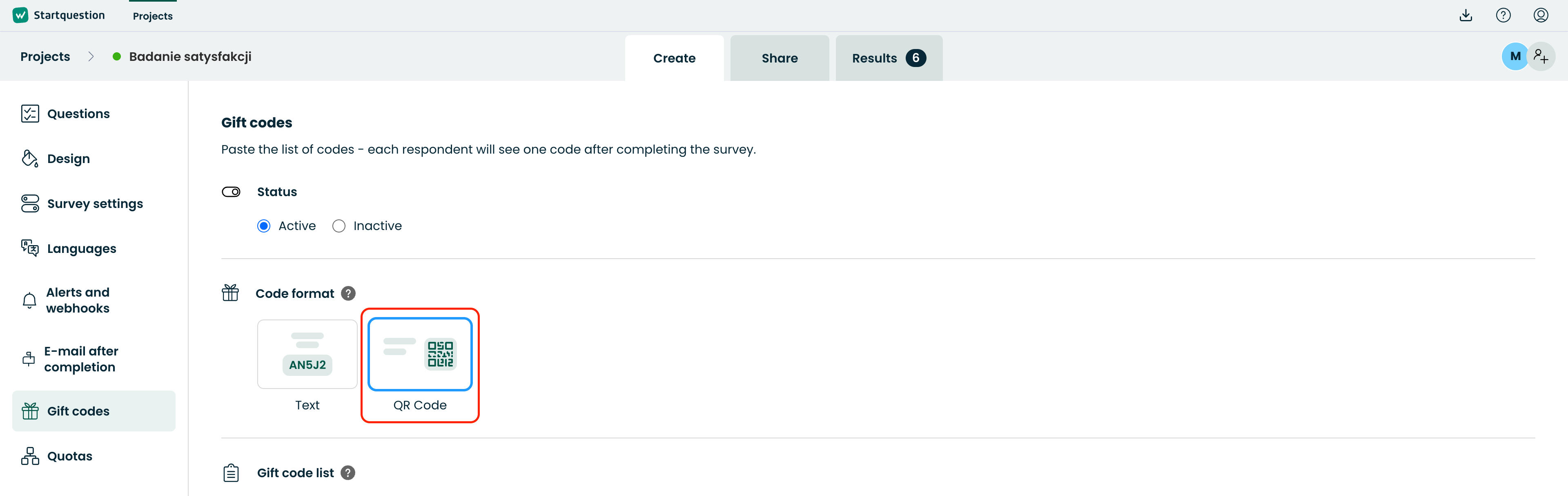
The QR code is generated automatically based on the code you enter – you do not need to prepare separate graphics.
3. Add a list of codes
In the Gift Code List field, paste the codes you have prepared.
Each code should be placed on a separate line or separated by spaces. Codes will be assigned to respondents in the order in which they appear on the list.
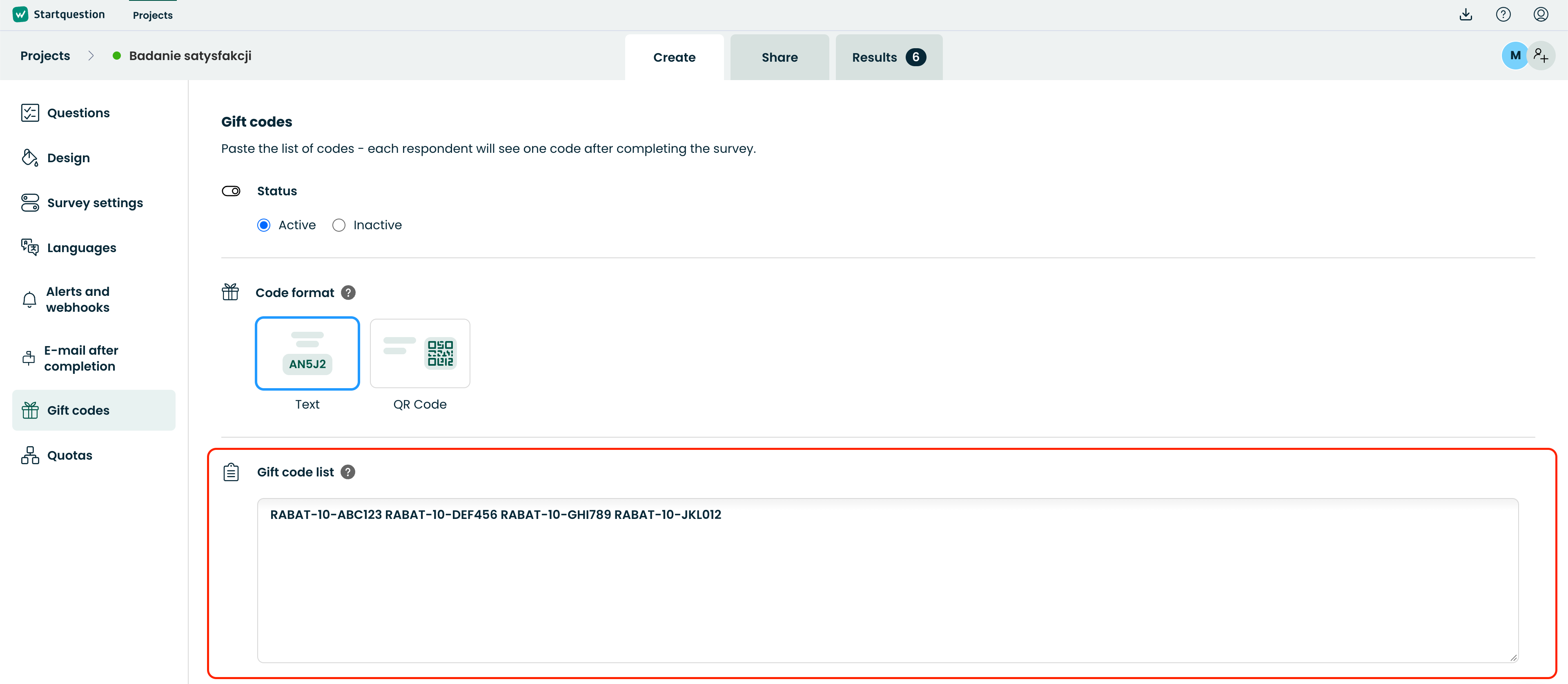
The maximum length of a single code is 255 characters.
Example list:
RABAT-10-ABC123
RABAT-10-DEF456
RABAT-10-GHI789
RABAT-10-JKL012
With the list above, the first respondent will receive RABAT-10-ABC123, the second will receive RABAT-10-DEF456, and so on.
4. Prepare the message for the respondent
In the Message for the respondent field, enter the text that will be displayed on the thank-you screen after the respondent completes the survey.
You can use the message to explain what the respondent has received, how the code works, and where and until when it can be used.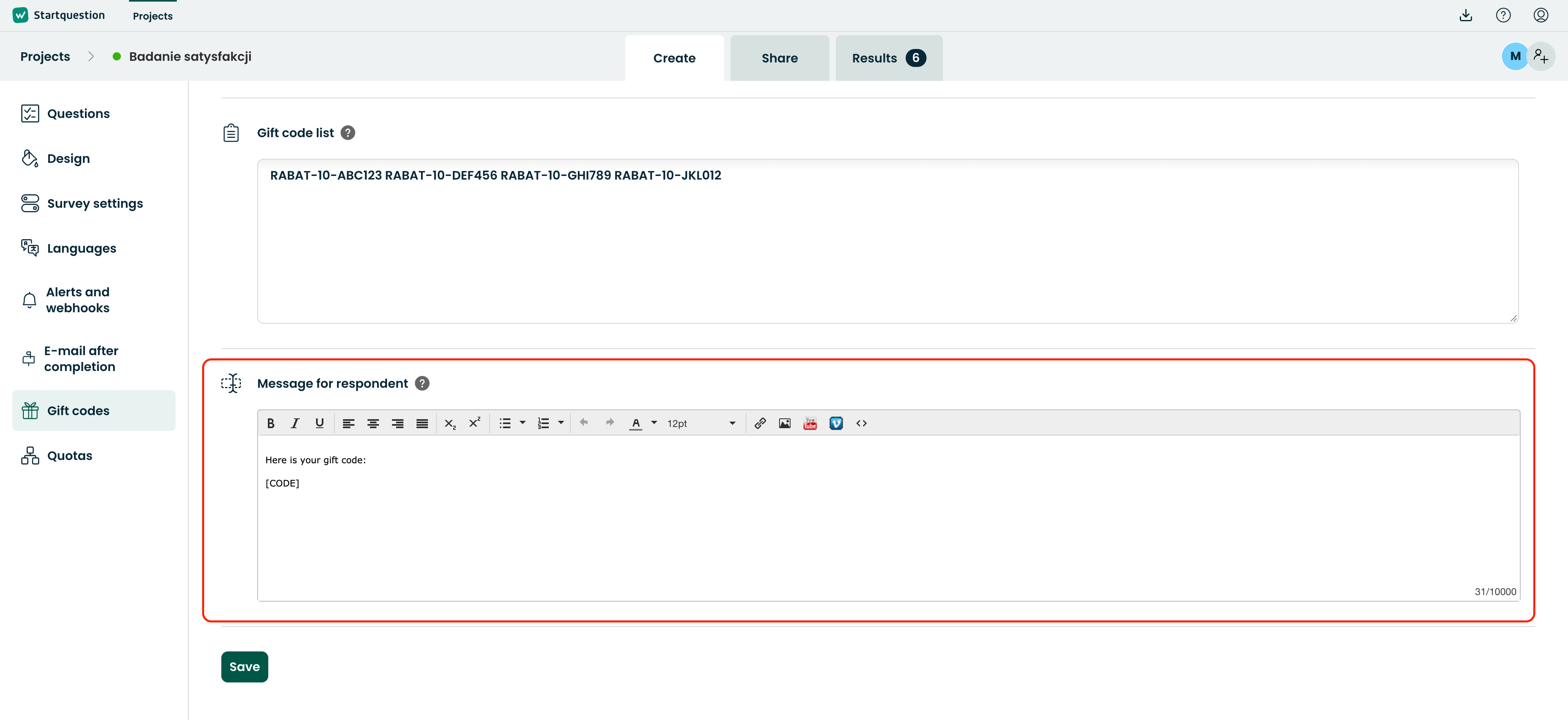
Example:
"Thank you for taking part in our survey!
Here is your discount code:
[CODE]
The code entitles you to a 10% discount on purchases in our online store. Enter it in your shopping cart before placing your order."
To display the individual code assigned to the respondent in the message, use the [CODE] macro.
Where will the respondent receive the code?
After completing the survey, the discount code can be provided to the respondent in two places:
on the last page of the survey, i.e. on the thank-you screen displayed after the survey has been completed,
in an email sent after the survey has been completed.
You can decide how you want to provide the code to the respondent. It can be available only on the last page of the survey, only in the email, or in both places at the same time.
The code is assigned to the respondent after they complete the survey, and the way it is delivered depends on the survey configuration.
To display the code assigned to a respondent in the thank-you message or email, use the [CODE] macro. Wherever the macro is placed, the system will automatically display the code assigned to that respondent.
You can also select the [CODE] macro directly from the Dynamic Content list available when editing the survey completion confirmation text: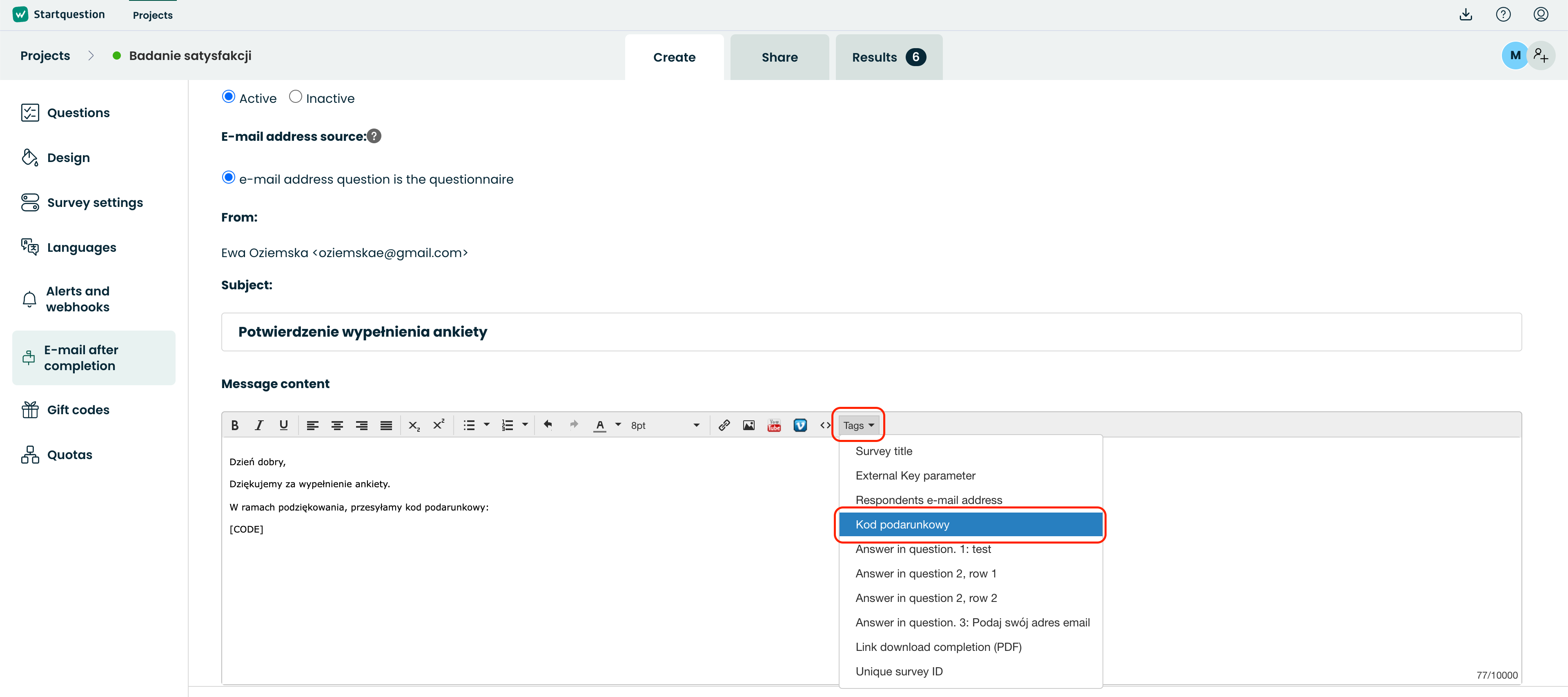
The feature can be used with all available survey distribution methods:
general links available to everyone,
individual links secured with a token.
This allows you to use Discount Codes both in simple campaigns and in surveys where each respondent has an individual, secured access link.
What should you keep in mind?
Before launching your survey, make sure that the number of codes you have prepared corresponds to the expected number of respondents who should receive a reward.
Key rules:
each respondent receives one code,
codes are assigned in the order in which they appear on the list,
once a code has been displayed, it will not be assigned again,
a single code can contain a maximum of 255 characters,
you can display the code as text or a QR code,
the QR code is generated automatically from the entered code,
the feature works with general links and individual links secured with a token,
this option is not available in surveys created as a widget / pop-up survey.
Example Use Cases
The feature can be used, among other things, for:
distributing discount codes for taking part in a customer satisfaction survey,
providing vouchers after completing a survey,
sharing one-time promotional codes,
providing coupons to participants in contests or loyalty programs,
rewarding respondents for taking part in a survey.